How to Convert Bank Statements to Excel: No More Manual Data Entry
Updated: January 2026
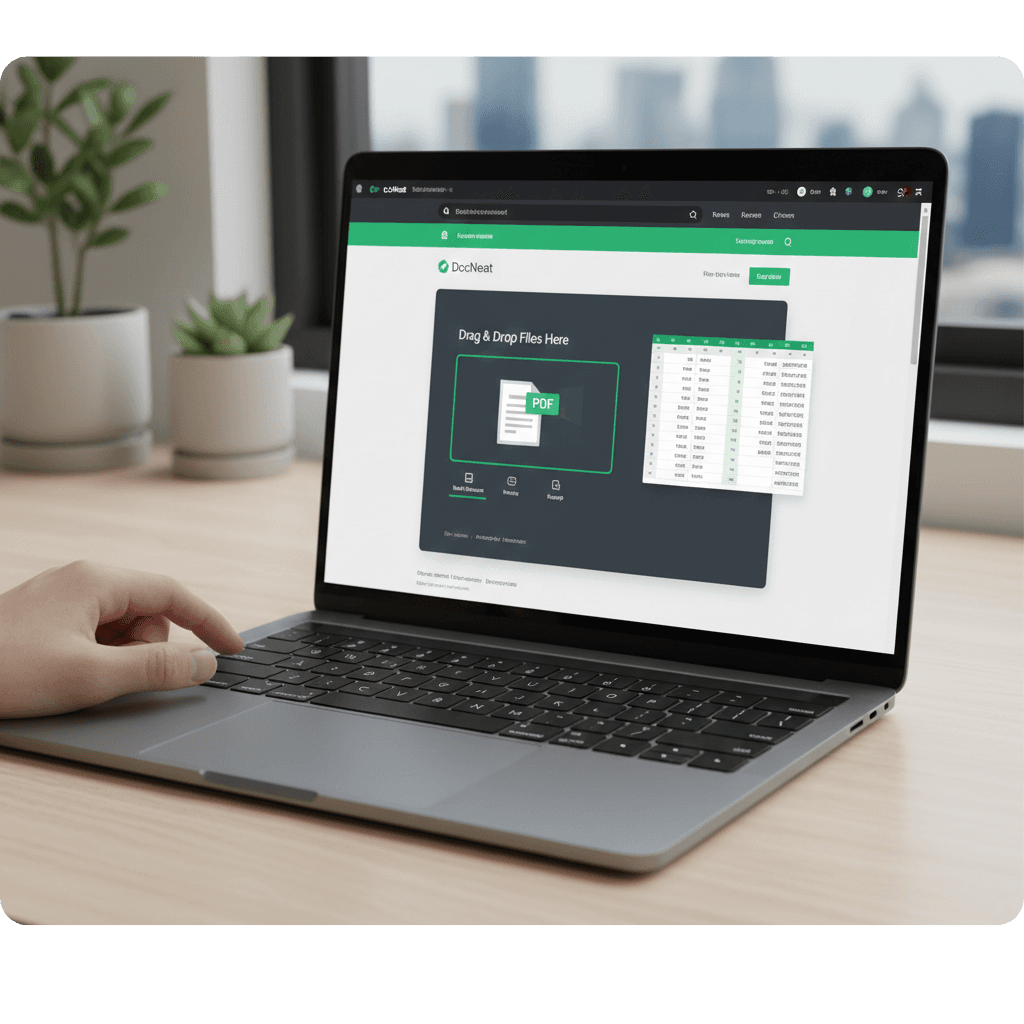
If you've ever spent hours manually typing transactions from PDF bank statements into Excel or your accounting software, you know the frustration. The endless numbers, the squinting at tiny fonts, and the nagging fear of making a costly mistake. It's tedious, time-consuming, and frankly, a waste of your valuable time.
Manual data entry for financial documents is rapidly becoming a relic of the past. Thanks to advanced OCR (Optical Character Recognition) and AI, converting bank statements to Excel is now faster, more accurate, and more secure than ever before.
The Problem: The "Accounting Bottleneck"
This "accounting bottleneck" isn't just a nuisance; it's a significant drain on productivity. A single misplaced digit can throw off your entire reconciliation, leading to wasted time tracking down discrepancies and potential compliance issues.
"Manual data entry isn't just tedious; it's a productivity black hole that costs businesses thousands each year in lost time and error correction."
The Solution: Automated Data Extraction
At DocNeat, we believe your time is better spent analyzing your finances, not manually transcribing them. Our platform transforms your bank statements, invoices, and receipts into ready-to-use Excel or CSV files in three simple steps:
- 1
Upload: Drop your PDF or scan onto the platform.
- 2
Extract: Our platform identifies dates, descriptions, and amounts in seconds.
- 3
Download: Get a perfectly formatted file ready for your software.
Security First: Your Data is Safe
We understand that financial data is sensitive. That's why DocNeat is built with an Immediate Deletion Guarantee.
All uploaded statements are processed in temporary memory and are deleted the moment the extraction is complete. We do not store your financial statement data, nor do we ever share it with third parties. For more details, see our Privacy Policy.
*No sign-up required